📋Resource Review Rubric

Use this page during your resource review to make sure you address all review checkpoints.

Start your review

  1. Open the My Resources pagearrow-up-right (Hover over the resources menu and select my resources)

  2. Sort your resources by review date with the oldest review date coming first.

  3. Select the edit button on your top resource (resource will open in a new tab)

  4. Follow the steps in the rest of this document to complete your review.

  5. Once the review is complete, close the tab to return to the My Resources page.

  6. Select the Edit button on the next non-reviewed resource.

  7. Repeat steps 6 through 8 until you have reviewed all resources.

    1. You can refresh the page to reset your list such that the oldest review is again at the top at any point. If refreshing the page restart this process from step 5.

Details Tab

Check the following in your details tab:

  • Publish status is appropriate.

  • Title is appropriate.

  • Description is appropriate.

  • Keywords are appropriate.

    • When setting keywords consider what someone might type in to find your content. Also consider if adding a keyword will make it harder to find another resource.

  • Collection, Provider and Type are appropriate.

  • All three owner spaces are appropriate.

    • owner 1 is the lead, owner 2 is the assist, owner 3 is second assist.

circle-info

Note – “appropriate” may mean the field is blank for some scenarios.

Example 1 – a resource is standalone and not part of a collection therefore it is appropriate for the collection field to be blank

Example 2 – a resource has an owner1 (lead) and an owner 2 (assist). The project doesn’t require further owners therefore the owner 3 field is appropriately left blank.

circle-exclamation

Files Tab

Check the following in the files tab:

  • Content is up to date and links are live

    • Flag the resource and email leadership if content is out of date or there are dead links

  • Links lead to accessible content

    • Email ITC if you have questions about the accessibility of linked content. Do not flag the resource.

  • Logos are up to date

    • Make a one time note in the resource notes tab if logos are not up to date. Do not flag the resource.

  • Dates at the bottom of the document are not more than 3 years old

    • Flag the resource and email leadership if document has not been updated in more than 3 years. This should happen even if the content is still relevant, accurate and typo-free.

  • Source folder link exists and is accurate

  • Publish status is appropriate

  • Adobe API Check states "Pass"

    • Email ITC if the check is not passing. This means that the PDF has one or more issues that could cause accessibility barriers.

circle-exclamation

Topic Page(s) Tab

Check that topic pages listed are appropriate.

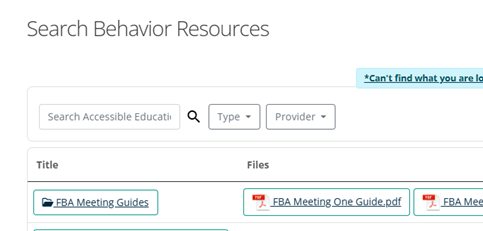
Remember adding a topic page ONLY populates the resource into the page’s baby grid. Consider if the topic page baby grid is appropriate or if a link should be added, or both. If you are unsure Email ITC to discuss. Do not flag.

chevron-rightAdding a Resource to a Topic Pagehashtag
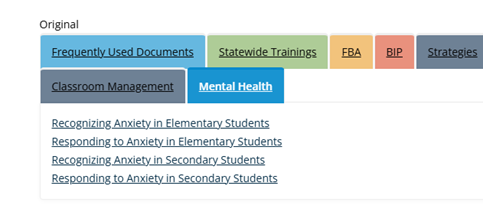
the baby grid on the behavior page which shows resources that have the behavior topic page added in the topic page tab.
All resources underneath a page’s baby grid are controlled by the topic page tab. Removing the topic page in the resource will remove the resource from the baby grid.
circle-exclamation

Videos Tab

If a video is present, check the following:

  • youTube Preview is live and video plays

    • If the YouTube preview is not live flag the resource and email leadership.

  • Content presented in the video is up to date

    • If the content is out of date flag the resource and email leadership.

  • Closed Captions box states "Profesionally Captioned"

    • If this box states "Automatically Captioned" first check the resource notes to see if someone has checked the auto captions and certified that they are good.

    • If nobody has checked the auto captions you can either check the auto captions (see note below) or Flag the resource and email the ITC.

circle-exclamation

Modules Tab

Open the module and check:

  • Module content is up to date and links are live

    • If content is out of date or there are dead links flag the resource and email leadership.

    • Logos in the module are up to date

  • Make a one time note in the resource notes tab if logos are not up to date. Do not flag the resource.

  • Links lead to accessible content

    • Email ITC if you have questions about the accessibility of linked content. Do not flag the resource.

  • Embedded files are up to date and links within the embedded content are live

    • If content is out of date or there are dead links flag the resource and email leadership.

    • NOTE that only 3rd party content should be embedded. All ITC content should be provided through a descriptive link or button

  • Links within embedded files lead to accessible content

    • Email ITC if you have questions about the accessibility of linked content. Do not flag the resource.

On the module details in the resource:

Check that the owner/manager roles are recorded and appropriate. If you are unsure who the owner and manager are email ITC to check. Roles can only be seen in Rise by someone who is an owner, manager or editor for the module.

circle-info

If the resource is a module resource but doesn't have anything listed in the module tab email itc but do not flag the resource. This is a result of an update to the system and will work itself out over time as modules are updtaded.

circle-exclamation

Notes Tab

Types of Notes

  • General

    • added using the "Add Note" button

    • use for notes that are not captured as part of a Flag, Remove Flag or Complete Review note

  • Flag

    • added using the "Flag Resource" button

    • use to describe the reason for flagging the resource. Should always be accompanied with an email to leadership

  • Remove Flag

    • add using the "Remove Flag" button

    • only avaible on a resource that is flagged

    • use to describe the reason for removing the flag

  • Complete Review

    • add using the "Complete Review" button

    • only used at the end of a resource review

    • use to describe any items that should be known for subsequent reviews or anything that others should know when editing the resource after a review

      • for example you can note old logos here that don't rise to the need to redo the resource at this point.

circle-info

All notes must be "submitted" when done. When editing a note the submit button will say "edit" instead of submit.

circle-exclamation

To flag or not to flag

This section is intended as a quick reference for when to flag a resource and when not to. This list is not exhaustive. If you have questions about a flag email ITC or Leadership to discuss.

Do Flag

AND email leadership or the ITC

  • Out of date content

  • Content with dead links

  • Resource with a date at the bottom over 3 years old

  • A video with no functional preview

  • A video with out of date content

  • A video with unverified auto captions

  • Module with out of date content

  • Module with dead links

  • Module with out of date embedded content

Don't Flag

AND either make a note, email leadership or email ITC

  • Links that lead to content where accessibility is questionable

  • Old logos

  • Adobe API Check is not passing

  • Questions about adding topic pages or custom links

Last updated